Using the Troop App
Events, RSVPs, what to wear and bring, chat, and photos all live in our app at my.troop3054.org. Here's how to use it, whether you're a parent, a Scout, or a leader.
What the App Is
The troop's private app. Only troop families and leaders can sign in.
Go to my.troop3054.org on your phone or computer. There's nothing to download from an app store. It runs in your browser, and you can put it on your home screen like any other app.
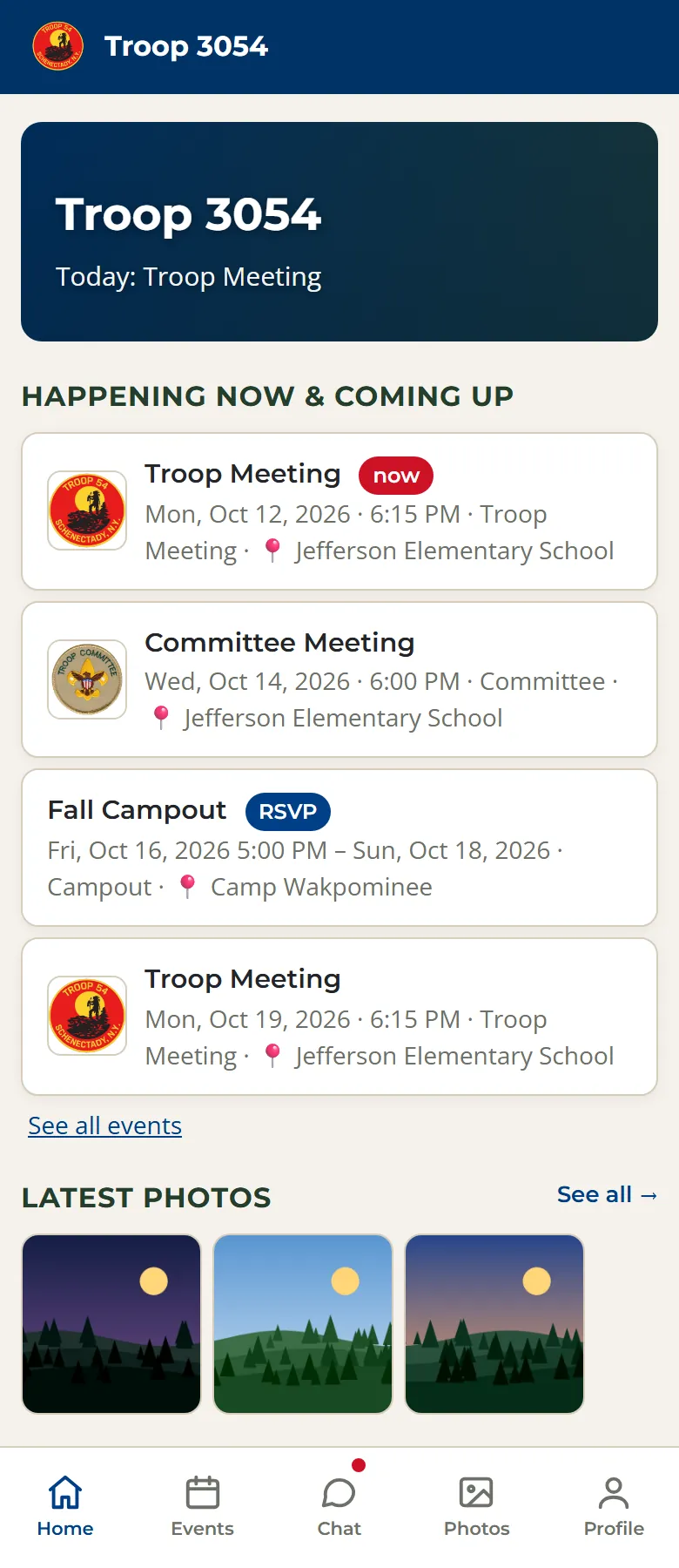
The bar along the bottom gets you everywhere:
- Home: what's happening today and next, the latest photos, and announcements
- Events: every meeting, campout, and service project
- Chat: group conversations with the troop
- Photos: pictures from troop events
- Profile: your Scout's record and your account
On a computer, the same links run across the top. Leaders also see a Leaders menu at the top. Anyone with just one leader page, like Program, gets a single link there instead.
Signing In
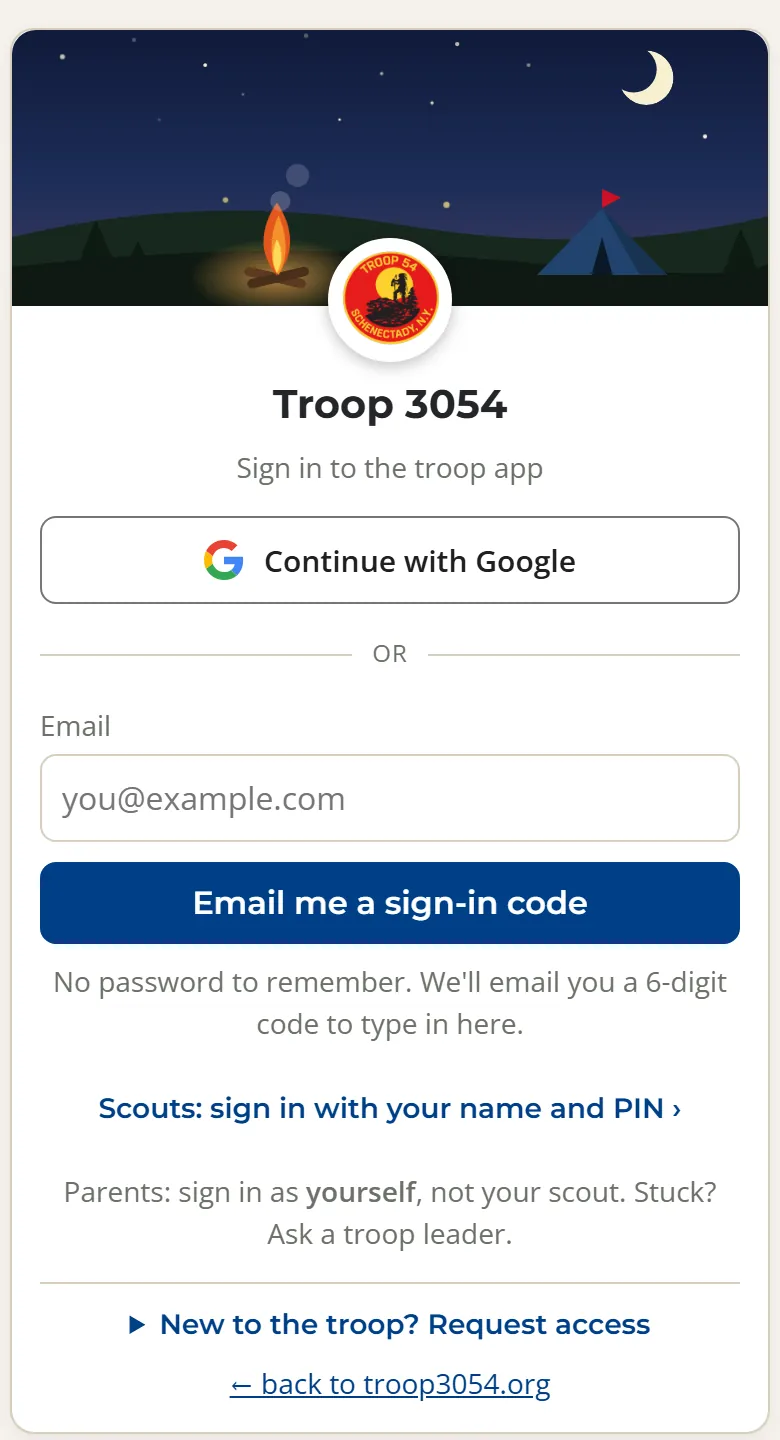
No password to remember. Pick whichever way works for you.
Parents and leaders
- Continue with Google: if the troop has your Google address (like a Gmail), tap it, pick your account, and you're in.
- Email me a sign-in code: type your email and we'll send a 6-digit code. Type the code into the app. It works for 30 minutes.
Scouts
Tap Scouts: sign in with your name and PIN. A parent sets up the PIN from their Profile in the app. A Scout whose own email is on file with the troop can also use Google or an emailed code.
New to the troop?
Tap New to the troop? Request access at the bottom of the sign-in screen. Give your name, your email, and your Scout's first and last name. A troop admin approves it and emails you a sign-in link.
Put It on Your Phone
One tap to open, full screen, and it can send you notifications.
iPhone
- Open my.troop3054.org in Safari.
- Tap the Share button (the square with an arrow), then Add to Home Screen, then Add.
- Open the app from the new icon from now on, and sign in there.
Android
- Open my.troop3054.org in Chrome.
- Tap Install on the "Install the Troop 3054 app" card on the Home screen, or open Chrome's menu (⋮) and tap Install app or Add to Home screen.
Notifications
Get a buzz for announcements and urgent messages.
- Open Profile and find Notifications.
- Tap Turn on notifications, then allow them when your phone asks.
On an iPhone, notifications only work once the app is on your home screen. Scouts' devices stay quiet overnight. Notifications to them wait until morning.
Events & RSVPs
Every meeting, campout, and service project, with what to wear and bring.
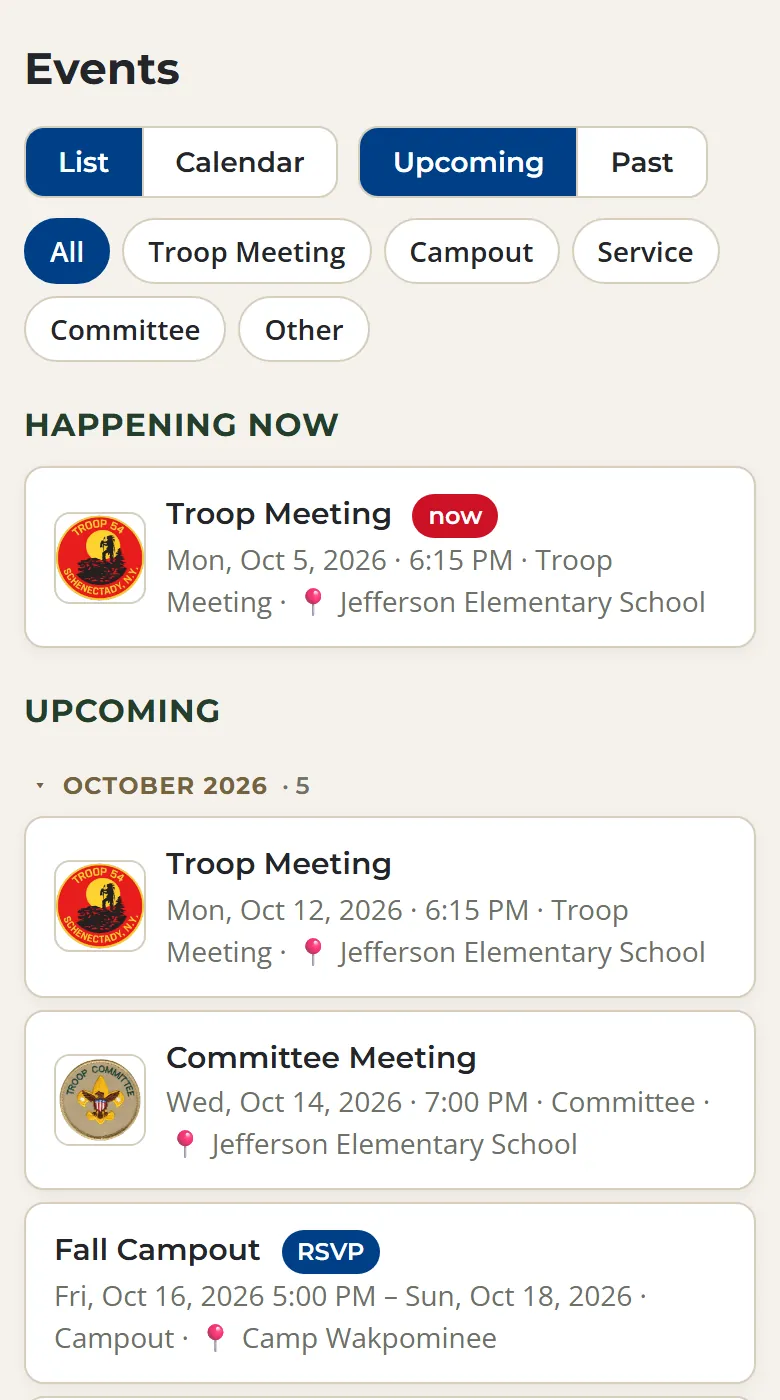
Open Events to see what's coming. Switch between List and Calendar, look back at Past events, or show just one kind, like campouts.
Tap an event to see when and where it is. Tap the address for a map.
What to wear and bring
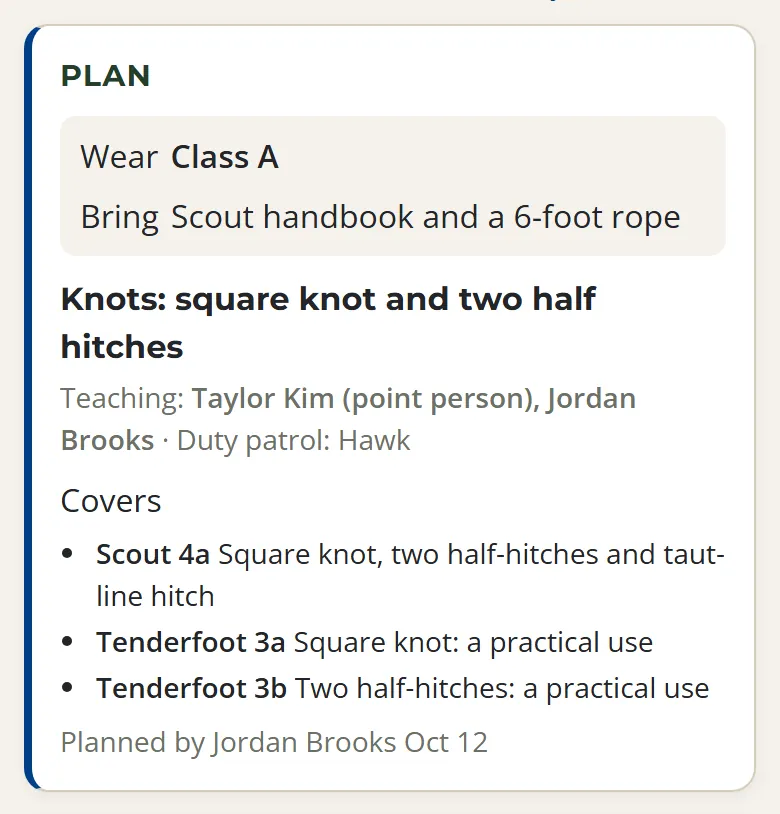
When the Scouts have planned a meeting, its Plan shows the uniform (Class A or Class B), what to bring, what they're doing, and who's teaching. If it covers rank requirements, they're listed under Covers. The uniform and what to bring also show on the public calendar.
Add it to your calendar
Open Details & add to calendar and tap Google Calendar or Apple / Outlook. To get every troop event in your phone's calendar at once, tap Subscribe on our calendar page (on Android, tap Google Calendar there).
RSVP
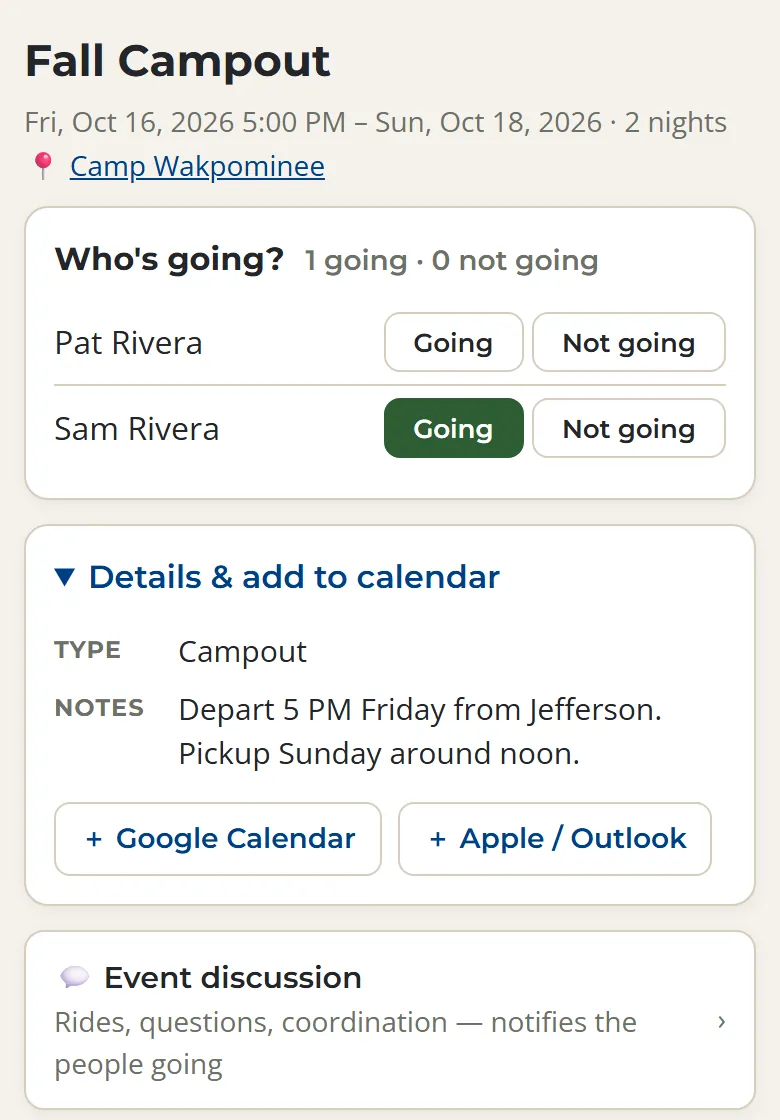
Events that need a head count, like campouts, ask Who's going? Tap Going or Not going for yourself and for each of your Scouts. You can change your answer anytime.
Event discussion
Every event has its own group chat for questions and coordination. It notifies everyone who said they're going, plus anyone already in the conversation.
Chat
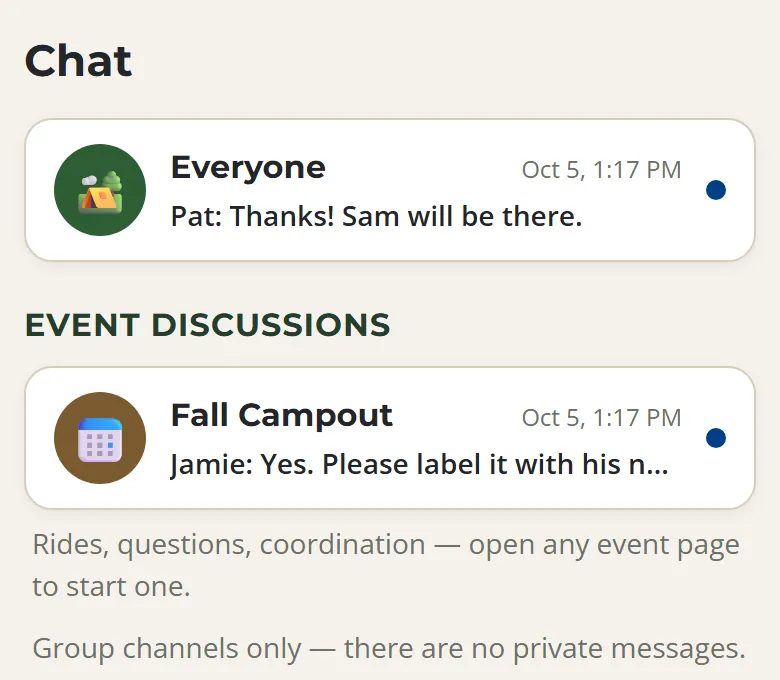
Group conversations only. There are no private messages.
- Everyone: the whole troop, families and leaders
- Leaders and Committee: for the adults on them
- Event discussions: one for each event
Every conversation is a group, in line with Scouting America's Youth Protection rules. Leaders can use @everyone when something can't wait.
Photos
Pictures from troop events, for troop families only.
Open Photos to see pictures by event, newest first. To add yours, open the event and tap Add photos. You can pick several at once.
Photos added in the app stay in the app. They're never posted to this public website.
Your Profile
Your Scout's record and your account settings.
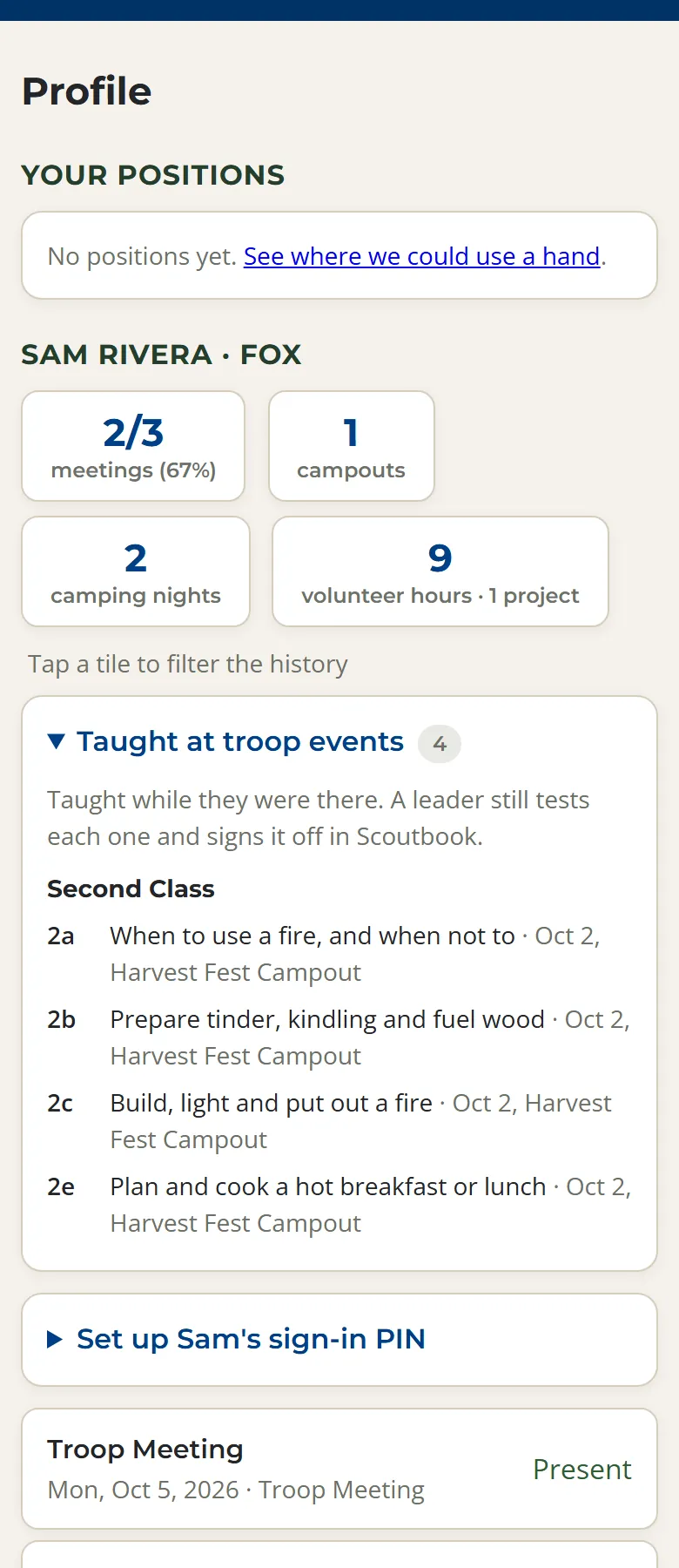
- Your Scout's record: meetings attended, campouts, camping nights, and volunteer hours. Tap a tile to see just those events.
- Taught at troop events: rank requirements, Scout through First Class, that were taught at meetings and outings your Scout was at. Taught isn't passed: a leader still tests each one and signs it off in Scoutbook. Requirements for ranks your Scout already holds drop off the list.
- Set up your Scout's sign-in PIN so they can sign in on their own.
- Notifications for this device.
- My account: who's signed in, with Sign out, your email addresses, and your PIN.
- Feedback, at the very bottom: found something confusing? It goes straight to the troop admins.
Scouts
Your events, your record, and what to bring.
- Sign in with your name and PIN. Ask a parent to set it up from their Profile. If the troop has your own email, Google or an emailed code works too.
- Check Events for what to wear and bring.
- Your Profile shows your meetings, campouts, camping nights, and volunteer hours.
- It also lists the rank requirements taught at events you were at. When you're ready, show a leader you can do one, and they'll sign it off.
- Earned a rank? Tap update rank on your Profile, and a leader confirms it.
Everything a Scout can see in the app, their parents can see too.
Planning Meetings (PLC)
The Patrol Leaders' Council plans the program, and the plans live right on each event.
The SPL, ASPL, patrol leaders, Troop Guide, Scribe, and Quartermaster can write plans, once a troop admin has their position on file in the app. Adult leaders can read them.
Plan the month
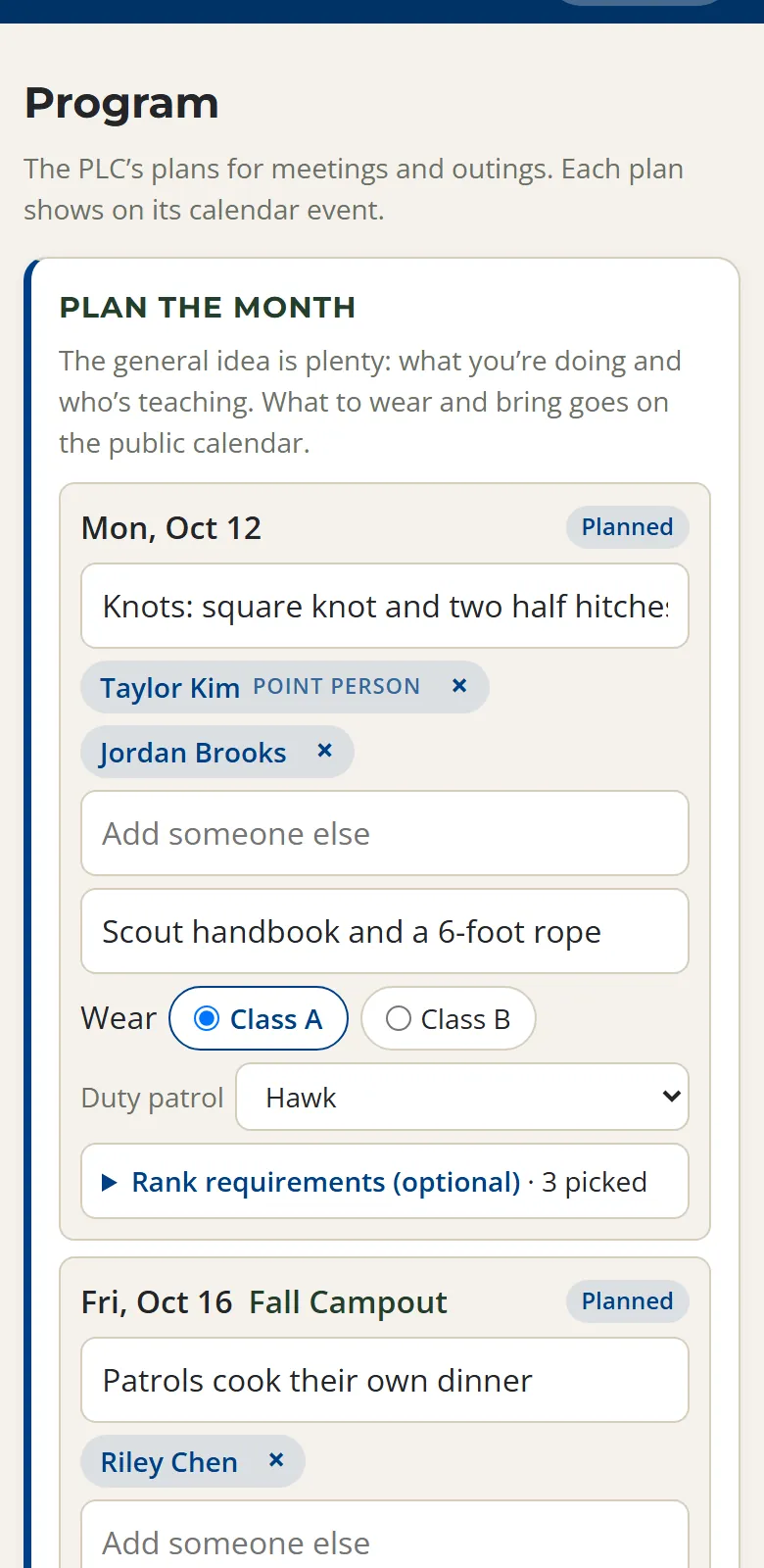
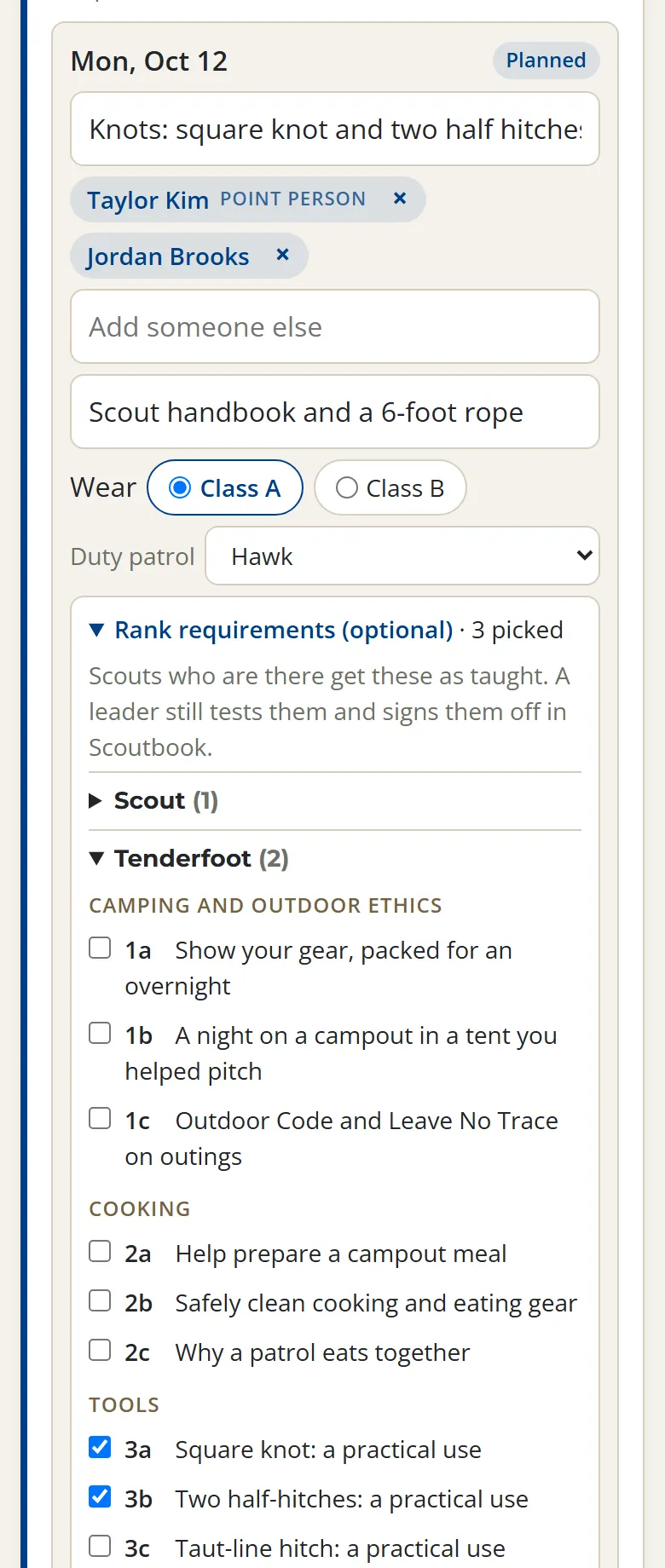
Tap Program at the top (it's in the Leaders menu if you have other leader pages too). It opens on Plan the month: the next five meetings and any outings in between, with a few boxes each. It works best at the PLC's monthly meeting, with one person typing while everyone decides.
- What are we doing? The skill or theme for the night. This is the only box you need.
- Who's teaching? Type a name and pick it from the list. Add as many as you need: Scouts, adult leaders, or a guest (type their name and tap Add as a guest). The first Scout or leader is the point person. For an outing, it's who's leading.
- Bring and Wear (Class A or Class B), if you know them.
- Tap Save the month.
That's the whole plan: the general idea, not a minute-by-minute schedule. The duty patrol takes turns on its own, and you can pick a different one if you need to. Families see what to wear and bring right away.
To plan or change just one meeting or outing, open it and tap Plan this meeting or Edit plan. It's the same boxes.
Rank requirements (optional)
If a meeting teaches part of a rank, open Rank requirements under its plan and tick what it covers, Scout through First Class. Once a requirement has been taught, it shows how many Scouts have had it, which helps when you pick what to teach next.
Scouts marked present get those requirements as taught on their Profile. Taught isn't passed: a leader still tests each Scout and signs it off in Scoutbook.
After the meeting
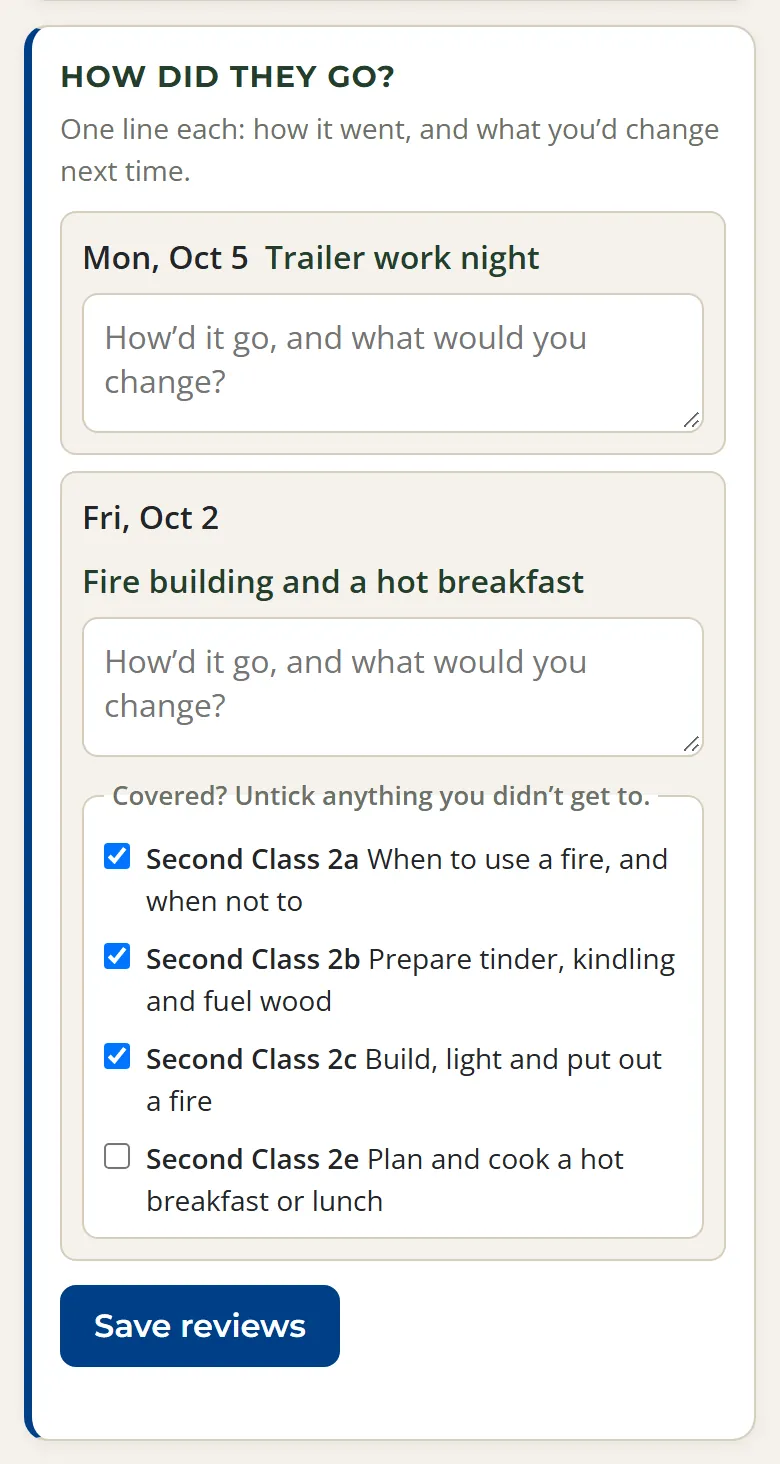
Under How did they go? on the same page, write one line for each meeting you planned: how it went, and what you'd change. Tap Save reviews (either Save button saves everything you've typed on the page). The PLC reads these when planning the next month.
If the plan listed rank requirements, they show under the box, all ticked. Untick any you didn't get to, so Scouts only get credit for what was actually taught.
Need something from the committee?
The Scouts plan the program, and the committee helps make it happen. When a plan needs something, ask the adult in the position that handles it. The same list is on the Program page.
- A campsite, reservation or permit: Outdoor Activities Coordinator
- Gear, or something from the trailer: Equipment Coordinator
- Money for supplies or fees, or paying someone back: Treasurer
- Enough adults to go (two-deep leadership): Scoutmaster
- Badges, rank cards and Court of Honor awards: Advancement Coordinator
- The meeting room, or anything else: Committee Chair
If that position is open, the Committee Chair handles it. See each position and whether it's filled.
The rest of the Program page
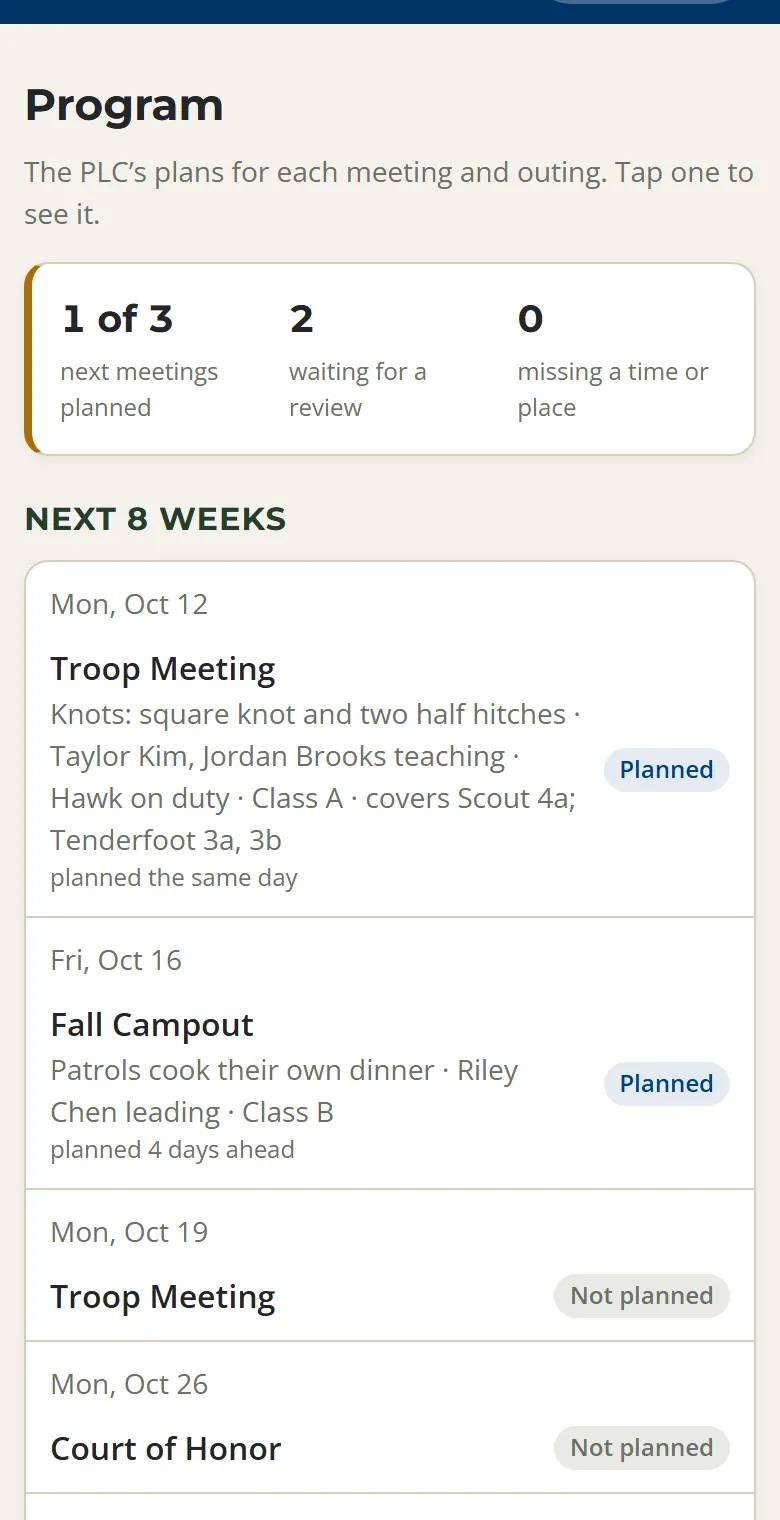
Leaders also see a summary and the next 8 weeks of meetings and outings: which ones are planned, how far ahead, and who's teaching, so they know what the PLC needs from them. Anything still missing a time or a place is listed at the bottom for leaders to fill in.
Ready for sign-off
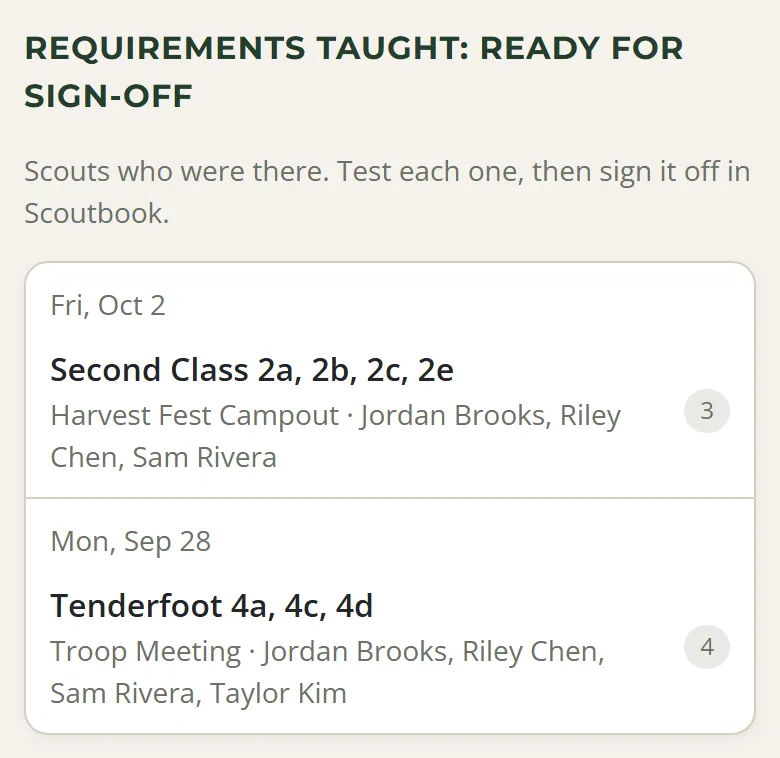
Further down, leaders see Requirements taught: ready for sign-off. It lists each meeting or outing from the last 8 weeks that covered rank requirements, once its attendance is taken, with the Scouts who were there. Test them when you can, then sign them off in Scoutbook. The app doesn't record sign-offs.
Taking Attendance
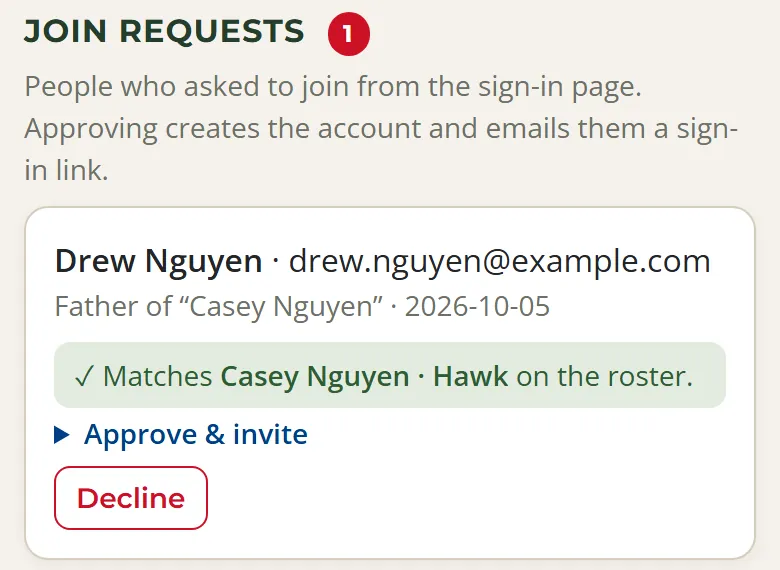
For leaders, and for Scouts who take attendance as Scribe.
- On meeting night, tap Check in on the Home screen, or open the meeting. On the day of an event, attendance is at the top of its page.
- Pick Present, Absent, or Excused, then tap each name. Tap again to clear it.
- For campouts and service projects, tap everyone who went. For someone who came for part of a trip, tap adjust stay.
For meetings, anyone left unmarked counts as absent. Before an event, attendance is tucked away, but you can still open it to mark an excused absence early.
The Attendance report in the Leaders menu has the totals, with a spreadsheet download for entering in Scoutbook.
Adding Events
Everything on the calendar starts here.
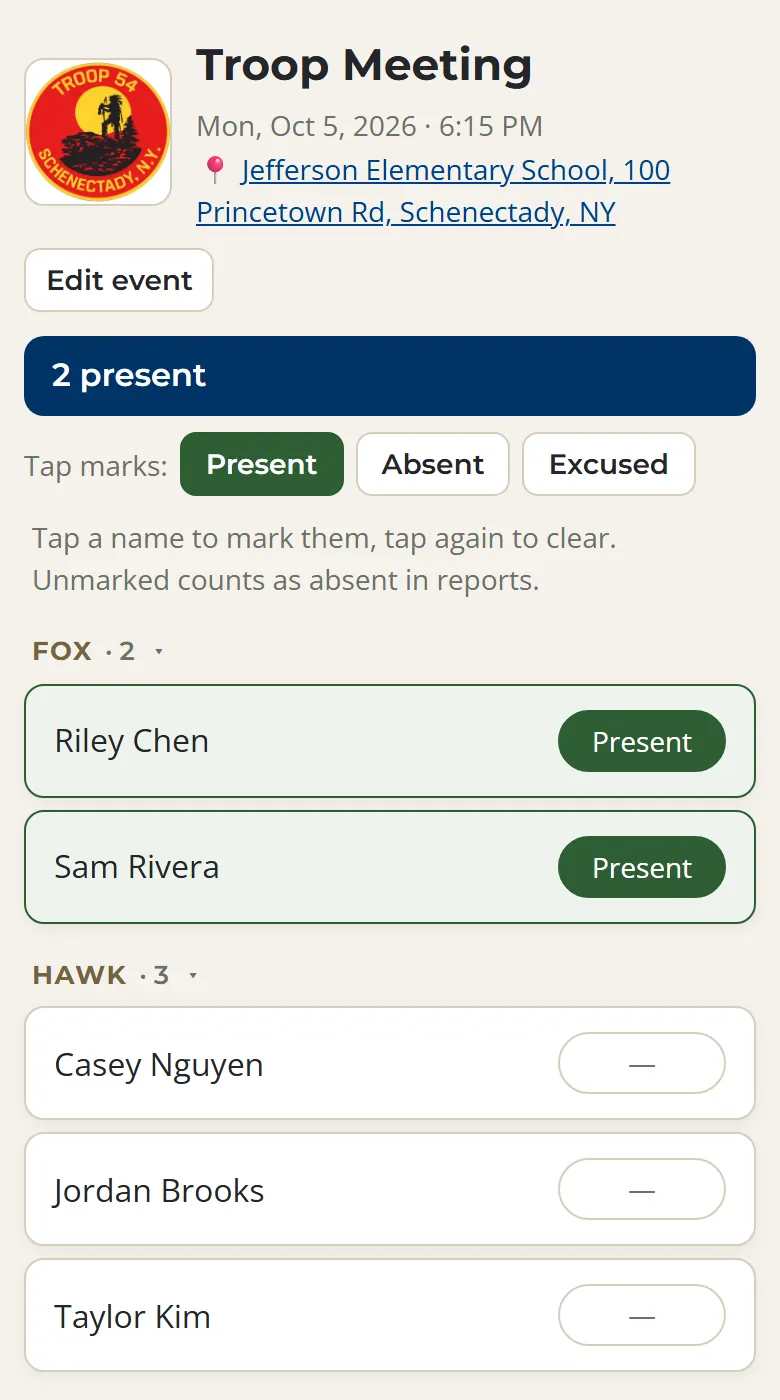
- Open Events and tap Add event.
- Fill in the date, start and end times (leave them blank for an all-day event), the kind of event, and the location.
- Tick Collect RSVPs if you need a head count.
- Under More, add notes, links like a permission slip, or a cover image. Leaders can tick Show this image on the public website calendar for a flyer or logo. Photos from an event's gallery can't be shared there.
Volunteer hours each: a service event works its hours out from its times. Any other event gives hours only if you type a number in, like a campout where the Scouts volunteered.
To change an event, open it and tap Edit event at the top.
The Leaders Menu
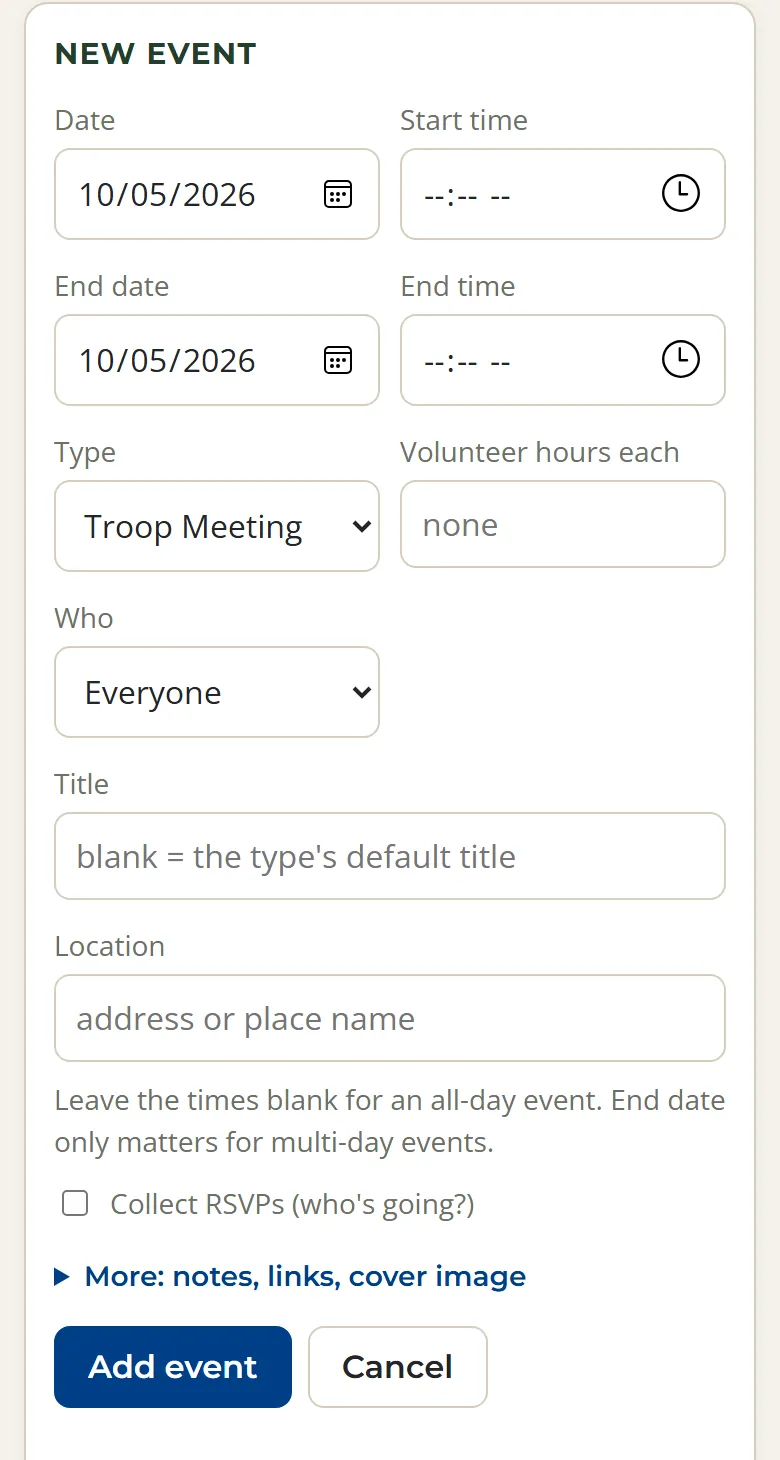
The pages behind the scenes. Which ones you see depends on your role.
- Scouts & families: the roster, patrols, ranks, parents, and join requests
- Adults: leaders, roles and backups, and merit badge counselors
- Attendance report: totals and a spreadsheet download
- Program: the PLC's plans and reviews
- Recruiting: what to post and when, for the pack and the troop
- Community: email the troop, the weekly digest, and stories
- Settings: weekly meetings, quiet hours, and backups, with when the last weekly backup went out
Keep at least two admins, so the troop isn't stuck if one steps away. The app won't let the last admin be removed.
Approving New Families
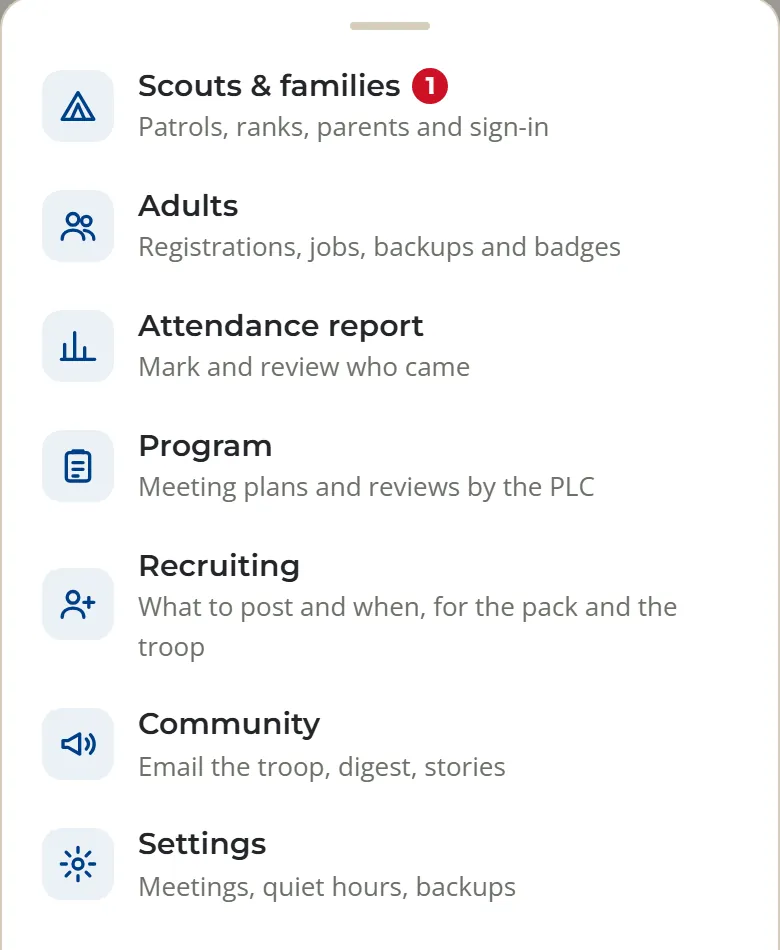
For admins. New families ask from the sign-in screen, and an admin approves them.
- Admins get an email when someone asks to join, and the request waits on Scouts & families.
- The card shows whether the Scout's name they typed matches someone on the roster. Check it before you link anyone.
- Open Approve & invite, choose Parent / Guardian or Leader / Committee, tick their Scout, and tap Confirm & send sign-in link.
If the person is already on the roster under another email, add the new address to their entry instead, so they don't end up with two accounts. The card warns you when it spots a match.
Troubleshooting
The questions we hear most.
I never got the code.
Check your spam folder. Codes only go to an address the troop already has. New to the troop, or using a different email? Tap Request access, or ask a leader to add your address.
Google says it doesn't know my address.
Sign in with the email the troop has for you, or ask a leader to add your Google address to your entry.
It keeps asking me to sign in.
Open the app from its home-screen icon and sign in there. If you use an emailed code, type it into the app instead of tapping the link. After that, you stay signed in as long as you open it at least once every 60 days.
My Scout can't sign in.
Open your Profile and tap Set up (or Reset) your Scout's sign-in PIN. They sign in with their name and that PIN. A few wrong PINs in a row lock it for 15 minutes. If it says PIN sign-in is paused, there were too many wrong tries in one day: set a new PIN and it works again.
I don't get notifications on my iPhone.
Add the app to your home screen first, open it from there, then turn notifications on in Profile.
Something looks wrong.
Use Feedback at the bottom of your Profile, or contact us.
Privacy & Youth Protection
How the app keeps Scouts and families safe.
- Only troop families and leaders can sign in. Chat, photos, and the roster never appear on the public website.
- There's no private messaging. Every conversation is a group, in line with Scouting America's Youth Protection rules.
- Everything a Scout can see, their parents can see.
- Scouts' devices get no notifications overnight.
Read the details in our privacy policy.
Ready to Sign In?
Still stuck? A troop leader can get you set up at any troop meeting.